
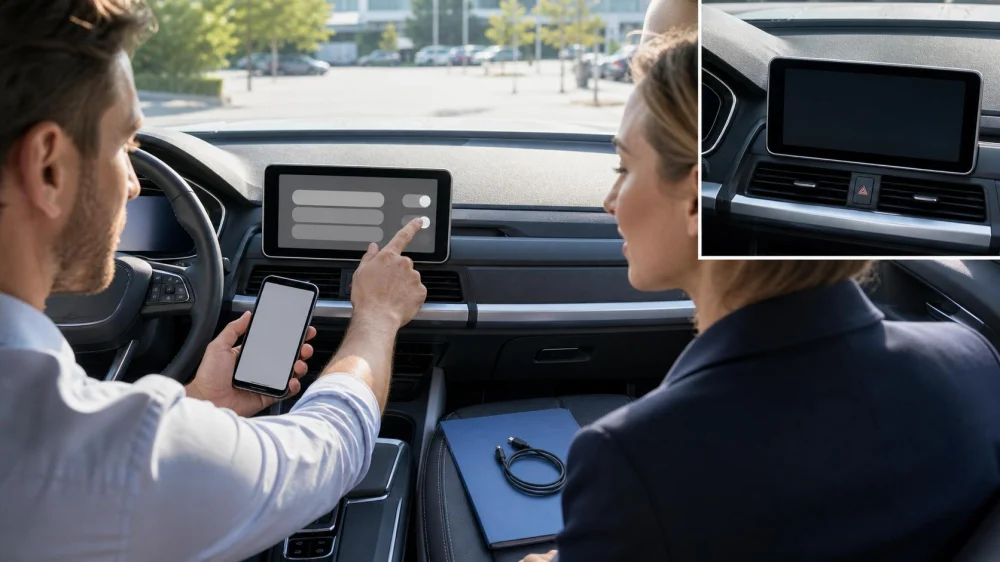
Rental Car Bluetooth and Infotainment Privacy: A Trip Checklist
On this page
- Quick answer
- Know what the vehicle may store
- Inspect settings before connecting
- Share the minimum permissions
- Use cable and projection modes carefully
- Limit navigation history
- Protect calls, messages, and contacts
- Avoid signing into personal accounts
- Use vehicle Wi-Fi cautiously
- Manage multiple drivers
- Delete data before return
- Document the privacy reset
- Pickup and return checklist
- Frequently asked questions
- Next steps
Quick answer
Before pairing a phone with a rental car, review the infotainment screen for previous devices, saved destinations, contacts, and accounts without opening another person’s information. Use the fewest permissions needed: audio only if you do not need contacts, messages, or navigation integration.
Before return, disconnect the phone, remove your device from the vehicle, remove the vehicle from your phone, delete recent destinations and call records, sign out of any apps, clear digital keys or user profiles, and use the vehicle’s privacy or factory-reset option only when the rental company permits it. Confirm that your data is gone, then photograph the neutral home/settings screen without capturing personal information.

Hertz Car Rental - Moreno Valley - Sunnymead Boulevard
Moreno ValleyRiverside CountyCalifornia
24907 Sunnymead Boulevard STE G, Moreno Valley, CA 92553, USA
Know what the vehicle may store
Modern infotainment systems can store paired-device names, contacts, recent calls, messages, favorite locations, navigation history, Wi-Fi credentials, media lists, voice samples, app sessions, driver profiles, and garage-door programming.
The exact data depends on vehicle, trim, software, phone, connection method, permissions, and rental-company configuration. A basic Bluetooth audio connection may store less than full smartphone projection.
Vehicle telematics and rental-company systems can collect separate operational data. Deleting the infotainment screen does not necessarily erase information held elsewhere under agreements and privacy policies.
Read the vehicle and rental-company privacy information when data use matters. Avoid assuming that “guest mode” prevents all storage.
Hertz Car Rental - Lithia Springs - Thornton Road
Lithia SpringsDouglas CountyGeorgia
500 Thornton Rd, Lithia Springs, GA 30122, USA
Inspect settings before connecting
Park safely, set the brake, and perform setup before driving. Do not navigate menus while the vehicle is moving.
Open the phone or device list only far enough to see whether the vehicle is ready for a new connection. Do not access previous renters’ contacts, messages, locations, or profiles.
If the system is full of old devices or appears signed into another account, contact the rental counter or support line. Ask whether staff can clear it or authorize a reset.
Photograph existing warning messages or a full device list only if needed for support, and avoid capturing names or personal data in your image.
Share the minimum permissions
Pairing often triggers phone prompts for contacts, call history, messages, notifications, or media. Decline permissions you do not need.
For music only, select Bluetooth audio without contact or message sync when available. For hands-free calls, contacts may be convenient but not essential if voice dialing works locally.
Message display can expose one-time codes, health information, work messages, and private conversations to anyone in the vehicle. Disable previews and notification access when not needed.
Review phone Bluetooth settings after connection. Some permissions can be changed without deleting the entire pairing.
Use cable and projection modes carefully
Apple CarPlay, Android Auto, and similar systems can show maps, messages, calls, music, calendars, and apps. Use a guest-style or temporary connection when supported.
Bring your own trusted cable. Unknown USB ports can charge slowly or support data. The vehicle screen should clearly prompt before projection begins.
Do not accept every setup request quickly. Read which information and control the system requests. Avoid enabling permanent automatic connection if you will use the car only once.
When the trip ends, remove the projection profile from both the vehicle and phone. Simply unplugging may leave the device listed.
Limit navigation history
Saved home, work, hotel, client, medical, school, and family destinations can reveal sensitive routines. Use temporary navigation, phone projection, or manual entry without saving favorites.
Do not label a destination “Home” in a rental vehicle. If a favorite is necessary, use a generic temporary label and delete it later.
Clear recent destinations, search history, favorites, routes, and predictive suggestions before return. Check separate driver profiles because history may be profile-specific.
If the vehicle has built-in voice navigation, review whether voice history or personalized learning can be cleared.
Protect calls, messages, and contacts
Use hands-free calling only when lawful and safe. Conversation privacy is limited when passengers or people outside the vehicle can hear.
Disable contact download if you can dial through the phone or a temporary interface. If contacts are synced, confirm that removal deletes the downloaded address book.
Turn off message previews and voice-read notifications for sensitive accounts. Work-managed phones may have policies that prohibit pairing with rented equipment.
After the trip, clear recent calls from the vehicle separately from the phone. Removing a device may not erase every cached record on all systems.
Avoid signing into personal accounts
Do not sign into streaming, email, cloud, shopping, toll, or garage-control accounts on a rental screen unless necessary and you understand sign-out.
Use phone projection or Bluetooth audio instead of entering a password into the vehicle. Saved tokens can keep an account active even when the password is not visible.
If the car includes native streaming or navigation, use a temporary session or rental-provided account when available. Do not add a payment card to the vehicle.
Before return, sign out, remove the app account, clear user data, and verify that the sign-in screen has returned.
Use vehicle Wi-Fi cautiously
A rental vehicle may offer a hotspot with a default or rental-specific password. Confirm the service terms, charges, data handling, and network name through official rental or vehicle information.
Do not reuse a personal password for the vehicle hotspot. Avoid sensitive transactions on an unfamiliar shared network unless you use appropriate security.
Forget the vehicle network on every device after the trip. Remove your devices from the hotspot client list if the system provides one.
Do not change administrator settings or passwords without permission because the next renter and rental company may need the configured service.
Manage multiple drivers
Decide whose phone will be primary. Multiple paired phones can compete for calls and audio or expose notifications to other drivers.
Use generic device names that do not reveal a full name, employer, phone number, or email address. Change the device name before pairing if needed.
Each authorized driver should review permissions and remove their own profile before return. Assign one person to perform the final privacy check.
Do not delete a travel companion’s data without asking. Confirm all users are finished with navigation history or media before resetting.
Delete data before return
Park safely before the return area or during final packing. Allow time; do not attempt a reset while rushing through traffic.
Remove saved destinations, favorites, recent routes, call history, contacts, messages, Wi-Fi networks, media lists, voice profiles, garage codes, user accounts, and digital keys.
Delete each paired phone from the vehicle. On each phone, forget the vehicle in Bluetooth, projection, Wi-Fi, and digital-key settings.
Use guest-session deletion or privacy reset when available. A factory reset may also erase rental configuration, so ask the company before using it.
Check that the screen returns to a neutral welcome or pairing state. Do not leave the vehicle signed into your account for staff to clear later.
Document the privacy reset
Take a photograph of the neutral device list or welcome screen if permitted. Frame it so no address, account name, vehicle identification number, contract, or person appears.
Note the return time and any setting you could not clear. Tell the rental agent and ask for assistance before closing the contract.
Keep the photo with return records for a reasonable period, then delete it when no longer needed.
If personal data remains after return, contact the rental company promptly through an official channel. Change relevant account credentials if you left an active session.
Pickup and return checklist
- Set up only while safely parked.
- Do not open previous renters’ information.
- Use a generic phone name and minimal permissions.
- Avoid saving home, work, payment, or account details.
- Use phone projection instead of native account sign-in when practical.
- Remove destinations, contacts, calls, messages, and profiles.
- Delete pairings from the vehicle and every phone.
- Forget vehicle Wi-Fi and digital keys.
- Use resets only with rental-company permission.
- Verify and document a neutral screen before return.
Frequently asked questions
Does deleting my phone from Bluetooth remove all data?
Not always. Navigation, call history, contacts, apps, Wi-Fi, and user profiles may store information separately. Check each category.
Should I factory-reset a rental car?
Ask the rental company. A factory reset can erase vehicle or fleet configuration. Use approved privacy or guest-session tools first.
Is smartphone projection more private than built-in navigation?
It can reduce saved destinations in the vehicle, but the projection profile and permissions may still remain. Remove the connection from both devices.
Can the rental company still have vehicle data after I reset the screen?
Yes. Telematics, transaction, and fleet data can be separate. Review rental agreements and privacy policies for those systems.
What if the car contains another renter’s contacts?
Do not open or copy them. Notify the rental company and ask it to clear the system or provide another vehicle.
Next steps
Before pairing, rename your phone generically and decide which permissions you need. Use temporary connections and avoid saved destinations or accounts. Schedule ten minutes before return to remove every profile from the car and phone, verify a neutral screen, and report anything you cannot delete.
This guide provides general privacy planning. Vehicle systems, rental policies, software, data retention, and reset options vary.




 SIXT Rent a Car Los Angeles Downtown4.0 (987 reviews)
 EZ RENTALS3.0 (94 reviews)
 Affordable Cash Car Rental2.0 (8 reviews)
 Enterprise Rent-A-Car4.0 (269 reviews)
 Enterprise Rent-A-Car4.0 (38 reviews)
 Enterprise Rent-A-Car4.0 (507 reviews)
 Car Rental Cancellation Policies Explained: How to Avoid Penalties
 Why Cleaning Charges Are the Most Common Rental Car Dispute
 How to Choose the Right Size Rental Car for Weekend vs Road-Trip Use
 Top Reasons People Get Extra Charges on Rental Car Bills – Avoid Hidden Fees
 Best Small SUVs to Rent for Family Road Trips in the U.S. | LifeStar Car Rental
 How to Get Cheap Car Rentals in Santa Barbara Airport: Expert Tips